
How to Make Weather App in React
Dev Samay
Senior ReactJS Developer
In this article, we are going to make a weather app in React. In this project, we will use openweather API which provides us free API to get weather d...
In this article, we are going to make a weather app in React. In this project, we will use openweather API which provides us free API to get weather details. Here we will add an input field where the user will add any city name and as soon city name gets entered an API call will occur and details will be fetched to the screen. This App will completely depend on API.
So basically this is going to be a beginner-friendly project, so let’s make this project step-by-step.
Pre-requisites to Make Calculator in React
- Basic knowledge of ReactJS.
- Basic knowledge of React hooks.
- Good knowledge of React Components.
Adding API And Key
Now before jumping into the code, let’s get the API and Key that we will use for this project. For that, we have to move to the openweather.org site and just log in to get the API key. After that, in our App.js component, we added a constant in which we have assigned our API key to the key constant, and we have provided a URL in our base constant. Also, we have two cool pictures that will differ in certain conditions.
import React, { useState } from 'react';
const api = {
 key: "4f8e795dcd6dbf7b9f5276bff095ffc1",
 base: "https://api.openweathermap.org/data/2.5/"
}
Creating Skeleton For App
Now let’s head to our return statement to create the skeleton for the weather app. Here we have added an input field with a class and placeholder. Then we added another <div> for location-box and then added <div> for a location with an initial location to check the output. lastly, we have added another div where we will add date where we will get date using datebuilder function.
1return (
2 <div className="app">
3 <main>
4 <div className="search-box">
5 <input
6 type="text"
7 className="search-bar"
8 placeholder="Search..."
9 />
10 </div>
11 <div>
12 <div className="location-box">
13 <div className="location">New York City, US</div>
14 <div className="date">{dateBuilder(new Date())}</div>
15 </div>
16 </div>
17 </main>
18 </div>
19 );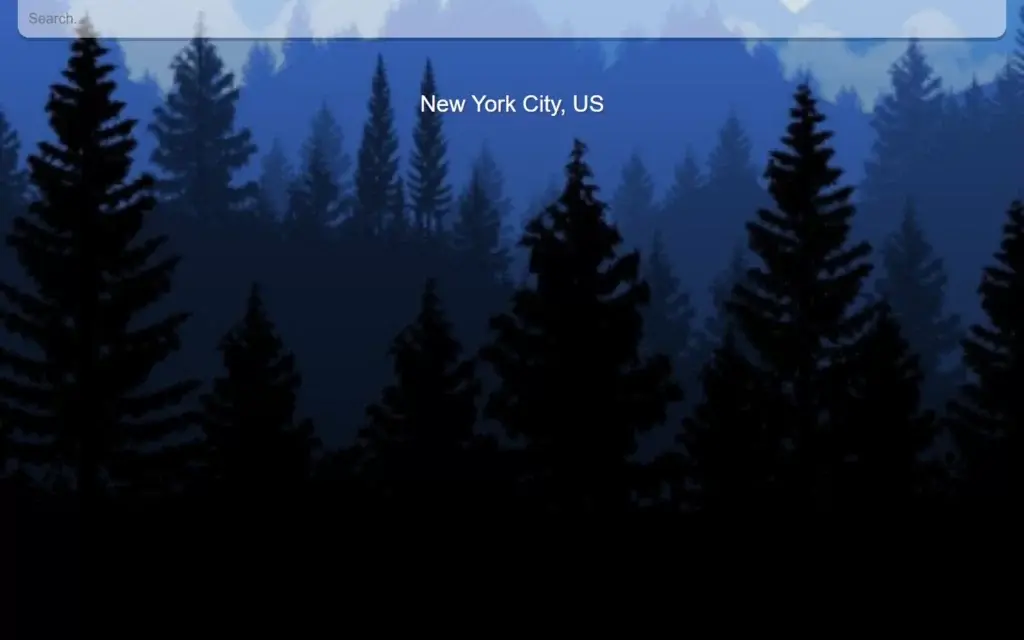
Creating Date
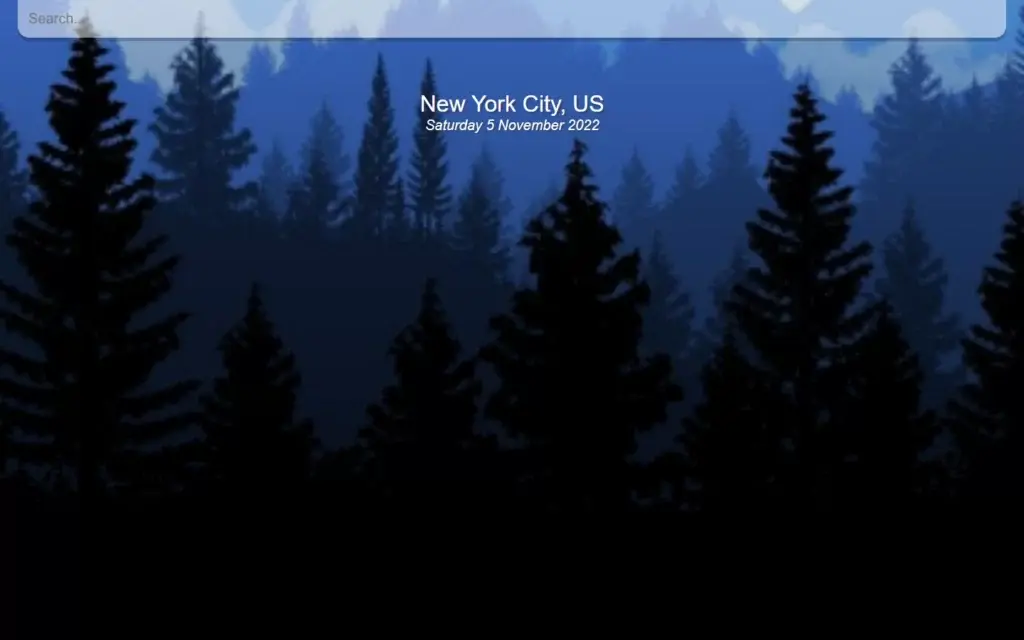
Now let’s get today’s date, for that, we have added a function named dateBuilder(), here we have added an array for months with all month names. Then we added another array for days with all day’s names. Also “d” is here the Date() object which we have passed from the function call. After that we added a variable for the day, here we used days[d.getDay()], getDay() is a function to get the current day.
Then we have fetched the date and similarly month and year, which are returned to the function call. Here you can see we have separately made arrays of months and days because the getDay() and getMonth() function returns the number of the day and month respectively, so we just need the month name and day name not the number.
const dateBuilder = (d) => {
 let months = ["January", "February", "March", "April", "May", "June", "July", "August", "September", "October", "November", "December"];
 let days = ["Sunday", "Monday", "Tuesday", "Wednesday", "Thursday", "Friday", "Saturday"];
 let day = days[d.getDay()];
 let date = d.getDate();
 let month = months[d.getMonth()];
 let year = d.getFullYear();
 return `${day} ${date} ${month} ${year}`
 }
Adding States
After that, we have to add our states, one for query and another for weather. Here query is to make a URL for weather API and weather is for details. Then we have added the onChange event on input where we are calling the query, and also we are calling a function named search on onKeyPress event.
1function App() {
2 const [query, setQuery] = useState('');
3 const [weather, setWeather] = useState({});
4 return (
5 <div className=>
6 <main>
7 <div className="search-box">
8 <input
9 type="text"
10 className="search-bar"
11 placeholder="Search..."
12 onChange={e => setQuery(e.target.value)}
13 value={query}
14 onKeyPress={search}
15 />
16 </div>
17);}
Calling API to Get Result
Now we have defined the search function, in this, we have added a condition where if evt.key is equal to Enter. If yes, then we have used fetch() where we have ${api.base}weather?q=${query}&appid=${api.key}&units=metric this line of code to create the API call and this is query syntax for URL, and we used then(res => res.json()) to get results in JSON format. After that, we updated the weather and query states.
1const search = evt => {
2 if (evt.key === "Enter") {
3 fetch(`${api.base}weather?q=${query}&appid=${api.key}&units=metric`)
4 .then(res => res.json())
5 .then(result => {
6 setWeather(result);
7 setQuery('');
8 console.log(result);
9 });
10 }
11 }
Updating The Skeleton
Now we are almost done, here we have to update our skeleton to get the final version of the app. Here on <div> with a condition to check the weather.main is not equal undefined, if yes then we will add app warm class otherwise app class. These classes have some CSS to change the background picture and style.
Then we have again checked a condition to check the weather is not undefined, and then we will display the location box and weather box. At location, we have dynamically assigned the location and country. Then in the weather box, we have assigned the temperature and weather name.
1 return (
2 <div className={(typeof weather.main != "undefined") ? ((weather.main.temp > 16) ? 'app warm' : 'app') : 'app'}>
3 <main>
4 <div className="search-box">
5 <input
6 type="text"
7 className="search-bar"
8 placeholder="Search..."
9 onChange={e => setQuery(e.target.value)}
10 value={query}
11 onKeyPress={search}
12 />
13 </div>
14 {(typeof weather.main != "undefined") ? (
15 <div>
16 <div className="location-box">
17 <div className="location">{weather.name}, {weather.sys.country}</div>
18 <div className="date">{dateBuilder(new Date())}</div>
19 </div>
20 <div className="weather-box">
21 <div className="temp">
22 {Math.round(weather.main.temp)}°c
23 </div>
24 <div className="weather">{weather.weather[0].main}</div>
25 </div>
26 </div>
27 ) : ('')}
28 </main>
29 </div>
30 );
31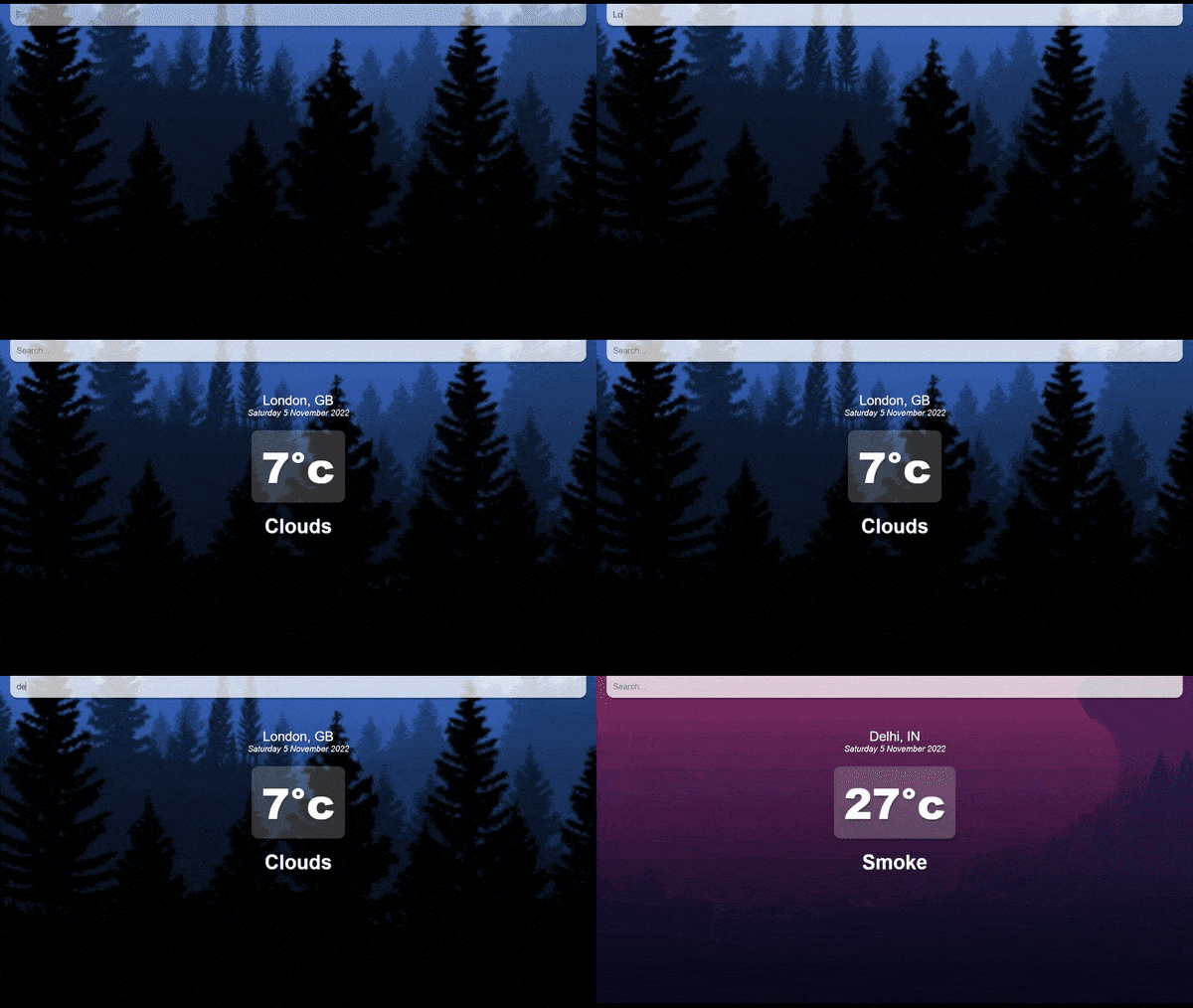
Customizing The Application
Now our structure is pretty good, and we have added almost everything but before going to the next move, let’s add some colors and customize this calculator, so this can look like a calculator at least. I won’t go deep in CSS because CSS is actually dependent on you and this is not that hard to put color or something. So if you want the same CSS then use the below CSS.
index.css
1* {
2 margin: 0;
3 padding: 0;
4 box-sizing: border-box;
5}
6body {
7 font-family: 'Montserrat', sans-serif;
8}
9.app {
10 background-image: url('./assets/cold-bg.jpg');
11 background-size: cover;
12 background-position: bottom;
13 transition: 0.4 ease;
14}
15.app.warm {
16 background-image: url('./assets/warm-bg.jpg');
17}
18main {
19 min-height: 100vh;
20 background-image: linear-gradient(to bottom, rgba(0, 0, 0, 0.2), rgba(0, 0, 0, 0.75));
21 padding: 25px;
22}
23.search-box {
24 width: 100%;
25 margin: 0 0 75px;
26}
27.search-box .search-bar {
28 display: block;
29 width: 100%;
30 padding: 15px;
31 appearance: none;
32 background: none;
33 border: none;
34 outline: none;
35 background-color: rgba(255, 255, 255, 0.5);
36 border-radius: 0px 0px 16px 16px;
37 margin-top: -25px;
38 box-shadow: 0px 5px rgba(0, 0, 0, 0.2);
39 color: #313131;
40 font-size: 20px;
41 transition: 0.4s ease;
42}
43.search-box .search-bar:focus {
44 background-color: rgba(255, 255, 255, 0.75);
45}
46.location-box .location {
47 color: #FFF;
48 font-size: 32px;
49 font-weight: 500;
50 text-align: center;
51 text-shadow: 3px 3px rgba(50, 50, 70, 0.5);
52}
53.location-box .date {
54 color: #FFF;
55 font-size: 20px;
56 font-weight: 300;
57 font-style: italic;
58 text-align: center;
59 text-shadow: 2px 2px rgba(50, 50, 70, 0.5);
60}
61.weather-box {
62 text-align: center;
63}
64.weather-box .temp {
65 position: relative;
66 display: inline-block;
67 margin: 30px auto;
68 background-color: rgba(255, 255, 255, 0.2);
69 border-radius: 16px;
70 padding: 15px 25px;
71 color: #FFF;
72 font-size: 102px;
73 font-weight: 900;
74 text-shadow: 3px 6px rgba(50, 50, 70, 0.5);
75 text-align: center;
76 box-shadow: 3px 6px rgba(0, 0, 0, 0.2);
77}
78.weather-box .weather {
79 color: #FFF;
80 font-size: 48px;
81 font-weight: 700;
82 text-shadow: 3px 3px rgba(50, 50, 70, 0.5);
83}
84
Full Source Code to Make Calculator in React
index.js
1import React from 'react';
2import ReactDOM from 'react-dom/client';
3import './index.css';
4import App from './App';
5import reportWebVitals from './reportWebVitals';
6const root = ReactDOM.createRoot(document.getElementById('root'));
7root.render(
8 <React.StrictMode>
9 <App />
10 </React.StrictMode>
11);
12// If you want to start measuring performance in your app, pass a function
13// to log results (for example: reportWebVitals(console.log))
14// or send to an analytics endpoint. Learn more: https://bit.ly/CRA-vitals
15reportWebVitals();
16
App.js
1import React, { useState } from 'react';
2const api = {
3 key: "4f8e795dcd6dbf7b9f5276bff095ffc1",
4 base: "https://api.openweathermap.org/data/2.5/"
5}
6function App() {
7 const [query, setQuery] = useState('');
8 const [weather, setWeather] = useState({});
9 const search = evt => {
10 if (evt.key === "Enter") {
11 fetch(`${api.base}weather?q=${query}&appid=${api.key}&units=metric`)
12 .then(res => res.json())
13 .then(result => {
14 setWeather(result);
15 setQuery('');
16 console.log(result);
17 });
18 }
19 }
20 const dateBuilder = (d) => {
21 let months = ["January", "February", "March", "April", "May", "June", "July", "August", "September", "October", "November", "December"];
22 let days = ["Sunday", "Monday", "Tuesday", "Wednesday", "Thursday", "Friday", "Saturday"];
23 let day = days[d.getDay()];
24 let date = d.getDate();
25 let month = months[d.getMonth()];
26 let year = d.getFullYear();
27 return `${day} ${date} ${month} ${year}`
28 }
29 return (
30 <div className={(typeof weather.main != "undefined") ? ((weather.main.temp > 16) ? 'app warm' : 'app') : 'app'}>
31 <main>
32 <div className="search-box">
33 <input
34 type="text"
35 className="search-bar"
36 placeholder="Search..."
37 onChange={e => setQuery(e.target.value)}
38 value={query}
39 onKeyPress={search}
40 />
41 </div>
42 {(typeof weather.main != "undefined") ? (
43 <div>
44 <div className="location-box">
45 <div className="location">{weather.name}, {weather.sys.country}</div>
46 <div className="date">{dateBuilder(new Date())}</div>
47 </div>
48 <div className="weather-box">
49 <div className="temp">
50 {Math.round(weather.main.temp)}°c
51 </div>
52 <div className="weather">{weather.weather[0].main}</div>
53 </div>
54 </div>
55 ) : ('')}
56 </main>
57 </div>
58 );
59}
60export default App;
61
Index.css
1* {
2 margin: 0;
3 padding: 0;
4 box-sizing: border-box;
5}
6body {
7 font-family: 'Montserrat', sans-serif;
8}
9.app {
10 background-image: url('./assets/cold-bg.jpg');
11 background-size: cover;
12 background-position: bottom;
13 transition: 0.4 ease;
14}
15.app.warm {
16 background-image: url('./assets/warm-bg.jpg');
17}
18main {
19 min-height: 100vh;
20 background-image: linear-gradient(to bottom, rgba(0, 0, 0, 0.2), rgba(0, 0, 0, 0.75));
21 padding: 25px;
22}
23.search-box {
24 width: 100%;
25 margin: 0 0 75px;
26}
27.search-box .search-bar {
28 display: block;
29 width: 100%;
30 padding: 15px;
31 appearance: none;
32 background: none;
33 border: none;
34 outline: none;
35 background-color: rgba(255, 255, 255, 0.5);
36 border-radius: 0px 0px 16px 16px;
37 margin-top: -25px;
38 box-shadow: 0px 5px rgba(0, 0, 0, 0.2);
39 color: #313131;
40 font-size: 20px;
41 transition: 0.4s ease;
42}
43.search-box .search-bar:focus {
44 background-color: rgba(255, 255, 255, 0.75);
45}
46.location-box .location {
47 color: #FFF;
48 font-size: 32px;
49 font-weight: 500;
50 text-align: center;
51 text-shadow: 3px 3px rgba(50, 50, 70, 0.5);
52}
53.location-box .date {
54 color: #FFF;
55 font-size: 20px;
56 font-weight: 300;
57 font-style: italic;
58 text-align: center;
59 text-shadow: 2px 2px rgba(50, 50, 70, 0.5);
60}
61.weather-box {
62 text-align: center;
63}
64.weather-box .temp {
65 position: relative;
66 display: inline-block;
67 margin: 30px auto;
68 background-color: rgba(255, 255, 255, 0.2);
69 border-radius: 16px;
70 padding: 15px 25px;
71 color: #FFF;
72 font-size: 102px;
73 font-weight: 900;
74 text-shadow: 3px 6px rgba(50, 50, 70, 0.5);
75 text-align: center;
76 box-shadow: 3px 6px rgba(0, 0, 0, 0.2);
77}
78.weather-box .weather {
79 color: #FFF;
80 font-size: 48px;
81 font-weight: 700;
82 text-shadow: 3px 3px rgba(50, 50, 70, 0.5);
83}
84
Output
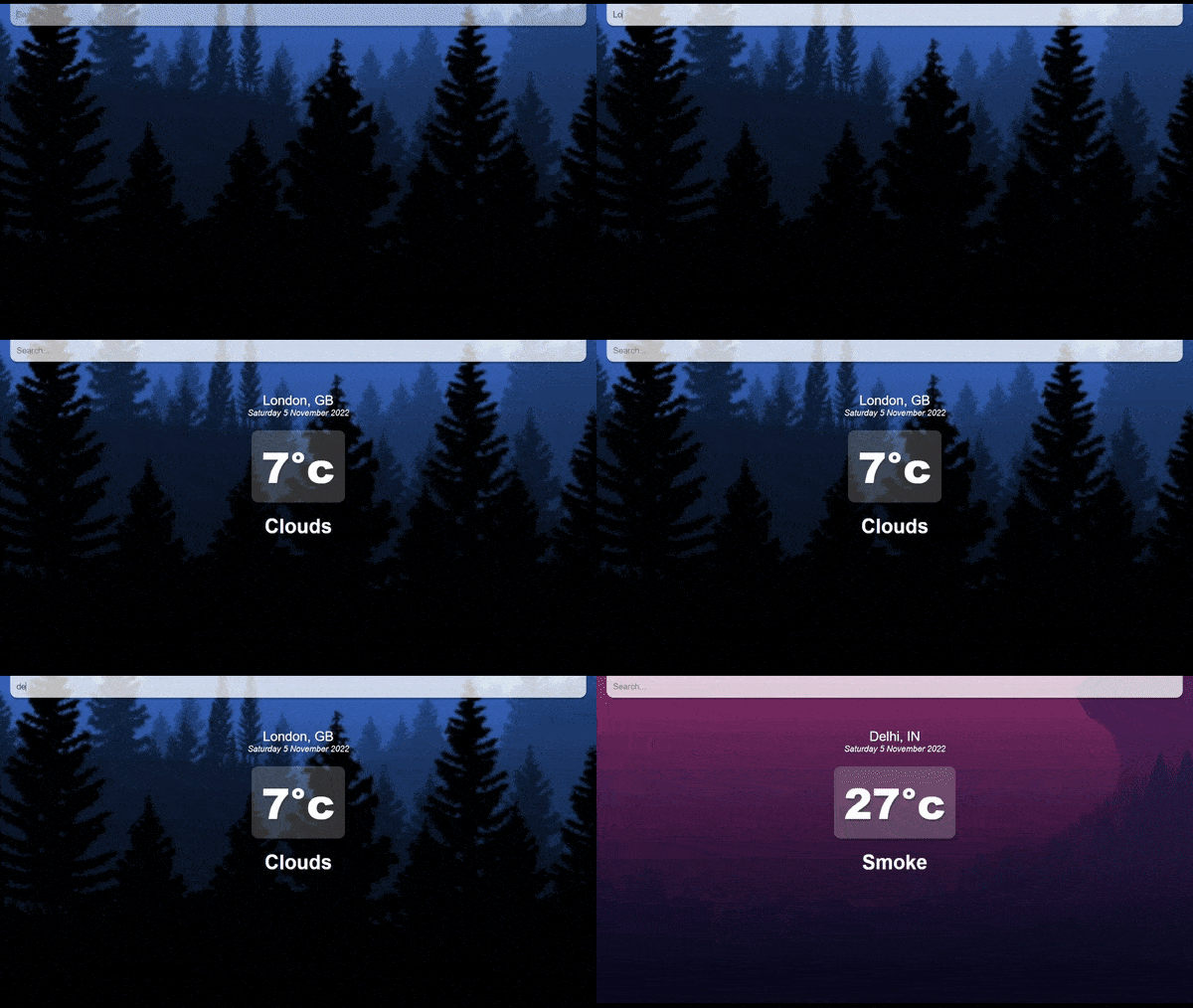
Check out video reference here:
You may also like:
About Dev Samay
Senior ReactJS Developer with extensive experience in building scalable web applications. Passionate about modern JavaScript frameworks, best practices, and creating exceptional user experiences.