
How to Make Calculator in React
Dev Samay
Senior ReactJS Developer

In this article, we are going to make a calculator in React. It will be similar to an Android calculator application where you put your values which r...
In this article, we are going to make a calculator in React. It will be similar to an Android calculator application where you put your values which remain on the screen and show the result straight away as you put values along with some operation. Its logic should be easy, as we do in most of our programming languages. The only difference is that we will make a UI like any other calculator has.
So basically this is going to be a beginner-friendly project, so let’s make this project step-by-step.
Pre-requisites to Make Calculator in React
- Basic knowledge of ReactJS.
- Basic knowledge of CSS.
- Basic knowledge of React hooks.
- Good knowledge of React Components.
Creating a Basic Structure For Calculator
Now let’s head to our App.js Component to create the basic structure for our calculator. For that we will go into a return statement, here we have added a div for the calculator. In this, we have added another div for display to create our display. Here we have added a span for where we will show the result, which will be dynamic, which means it will update as we write something in here. For now, we have added a static value here, nothing else.
Now we have added buttons for the operator and some symbols like dot(.) and equal(=) along with delete. After that, we need to put all 9 digits, for that, we have added a function named createDigits, in this, we have used a loop to add 1-9 digit buttons and added them to an application using the push() method.
1function App() {
2 const createDigits = () => {
3 const digits = [];
4 for (let i = 1; i < 10; i++) {
5 digits.push(<button key={i}>{i}</button>);
6 }
7 return digits;
8 }
9 return (
10 <div className="App">
11 <div className="calculator">
12 <div className="display">
13 <span>0</span> {0}
14 </div>
15 <div className="operators">
16 <button>/</button>
17 <button>x</button>
18 <button>-</button>
19 <button>+</button>
20 <button>DEL</button>
21 </div>
22 <div className="digits">
23 <button >0</button>
24 <button >.</button>
25 <button >=</button>
26 </div>
27 </div>
28 </div>
29 );
30}
31export default App;
32
Customizing The Calculator
Now our structure is pretty good, and we have added almost everything but before going to the next move, let’s add some colors and customize this calculator, so this can look like a calculator at least. I won’t go deep in CSS because CSS is actually dependent on you and this is not that hard to put color or something. So if you want the same CSS then use the below CSS.
Index.css
1:root {
2 --primary: #d81e5b;
3 --secondary: #8c38ff;
4 --dark: #131a26;
5 --light: #EEE;
6}
7* {
8 margin: 0;
9 padding: 0;
10 box-sizing: border-box;
11 font-family: 'Fira Sans', sans-serif;
12}
13body {
14 background-color: var(--light);
15}
16.App {
17 display: flex;
18 min-height: 100vh;
19 align-items: center;
20 justify-content: center;
21}
22.calculator {
23 width: 100%;
24 max-width: 400px;
25 background-color: #FFF;
26 border-radius: 16px;
27 overflow: hidden;
28 box-shadow: 0px 2px 64px rgba(0, 0, 0, 0.2);
29}
30.display {
31 padding: 16px;
32 text-align: right;
33 background-color: var(--dark);
34 color: var(--light);
35 font-size: 24px;
36 font-weight: 300;
37}
38.display span {
39 font-size: 14px;
40 color: #888;
41}
42.operators {
43 display: flex;
44}
45button {
46 appearance: none;
47 outline: none;
48 border: none;
49 color: #FFF;
50 padding: 16px;
51 font-size: 20px;
52 cursor: pointer;
53 transition: 0.4s;
54}
55button:hover {
56 opacity: 0.9;
57}
58.operators button {
59 flex: 1 1 0%;
60 background-color: var(--primary);
61 font-weight: 700;
62}
63.digits {
64 display: flex;
65 flex-wrap: wrap;
66}
67.digits button {
68 flex: 1 1 33.333%;
69 max-width: 33.333%;
70 background-color: var(--dark);
71}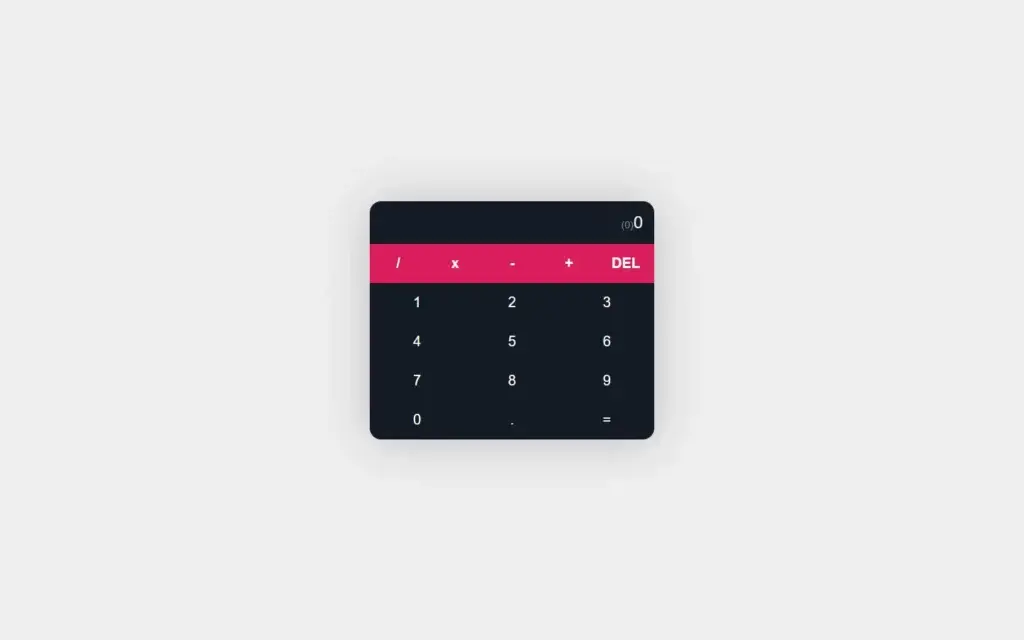
Adding States
Now let’s make logic for this calculator, for that, we have to define some states. We have imported here useState hook, and then we have added two states, one for calc which is a calculation, and the other for a result to update the dynamic result. After that, we have added an array of operators.
import { useState } from 'react';
function App() {
 const [calc, setCalc] = useState("");
 const [result, setResult] = useState("");
 const ops = ['/', '*', '-', '+', '.'];
}
Updating Calculator Screen
Now we need to set and update the values of the screen, for that, we have added a function named updateCalc. In this function, we are checking some conditions to verify the initial values are any operator or calc is empty, If yes then we will simply return. Then we have updated the calc’s value using setCalc where we are just concatenating the entered value. We have updated our digits with an onclick event, in which we are just pushing the number to the screen by simply calling this updateCalc function.
After that we set the value of the result, if their ops do not contain any number then we simply put in the result. Now we have updated our dynamic result with the state named result, and also we have applied the click event on all of the operators and symbols where we are calling the updateCalc function to print the entered button. Then we added a function on the “=” button to calculate the equation. and Also another click event function on the delete button.
1const createDigits = () => {
2 const digits = [];
3 for (let i = 1; i < 10; i++) {
4 digits.push(<button onClick={() => updateCalc(i.toString())} key={i}>{i}</button>);
5 }
6 return digits;
7 }
8 const updateCalc = (value) => {
9 if (
10 ops.includes(value) && calc === '' ||
11 ops.includes(value) && ops.includes(calc.slice(-1))
12 ) {
13 return;
14 }
15 setCalc(calc + value);
16 if (!ops.includes(value)) {
17 setResult(eval(calc + value).toString());
18 }
19 }
20return (
21 <div className="App">
22 <div className="calculator">
23 <div className="display">
24 <span>{result ? '(' + result + ')' : ''}</span> {calc || 0}
25 </div>
26 <div className="operators">
27 <button onClick={() => updateCalc('/')}>/</button>
28 <button onClick={() => updateCalc('*')}>x</button>
29 <button onClick={() => updateCalc('-')}>-</button>
30 <button onClick={() => updateCalc('+')}>+</button>
31 <button onClick={deleteLast}>DEL</button>
32 </div>
33 <div className="digits">
34 {createDigits()}
35 <button onClick={() => updateCalc('0')}>0</button>
36 <button onClick={() => updateCalc('.')}>.</button>
37 <button onClick={calculate}>=</button>
38 </div>
39 </div>
40 </div>
41 );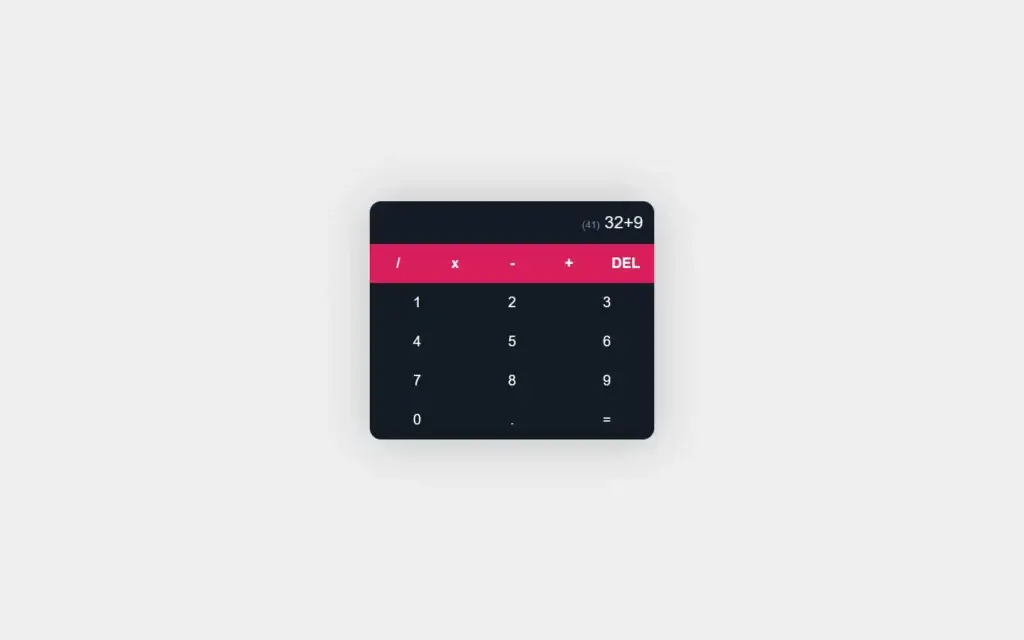
Calculation And Deletion
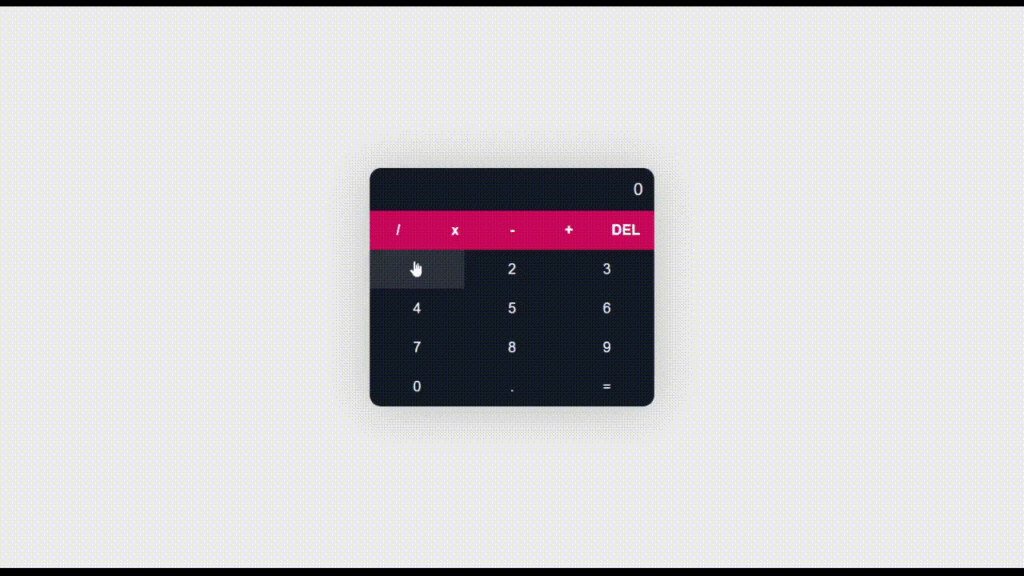
Now we are almost done, but our delete and equal button is not functional, so let’s make it functional. For that, we have created a function named calculate(). In this, we have added a simple line code setCalc(eval(calc).toString()); here eval will calculate the equation presented in the calc, and we just make in string value using toString method to update the calc value.
After that, in the deleteLast() function, if calc is blank then obviously we have nothing to do. We just delete the last value using the slice method, here -1 represents the deletion of one digit or ops from the end. then again, we will update the calc value to get a reflection on the screen. and we will update the result value since we need the dynamic result.
const calculate = () => {
 setCalc(eval(calc).toString());
 }
 const deleteLast = () => {
 if (calc == '') {
 }
 const value = calc.slice(0, -1);
 setCalc(value);
 setResult(eval(value).toString());
 }
Full Source Code to Make Calculator in React
index.js
1import React from 'react';
2import ReactDOM from 'react-dom/client';
3import './index.css';
4import App from './App';
5import reportWebVitals from './reportWebVitals';
6const root = ReactDOM.createRoot(document.getElementById('root'));
7root.render(
8 <React.StrictMode>
9 <App />
10 </React.StrictMode>
11);
12// If you want to start measuring performance in your app, pass a function
13// to log results (for example: reportWebVitals(console.log))
14// or send to an analytics endpoint. Learn more: https://bit.ly/CRA-vitals
15reportWebVitals();
16
App.js
1import { useState } from 'react';
2function App() {
3 const [calc, setCalc] = useState("");
4 const [result, setResult] = useState("");
5 const ops = ['/', '*', '-', '+', '.'];
6 const createDigits = () => {
7 const digits = [];
8 for (let i = 1; i < 10; i++) {
9 digits.push(<button onClick={() => updateCalc(i.toString())} key={i}>{i}</button>);
10 }
11 return digits;
12 }
13 const updateCalc = (value) => {
14 if (
15 ops.includes(value) && calc === '' ||
16 ops.includes(value) && ops.includes(calc.slice(-1))
17 ) {
18 return;
19 }
20 setCalc(calc + value);
21 if (!ops.includes(value)) {
22 setResult(eval(calc + value).toString());
23 }
24 }
25 const calculate = () => {
26 setCalc(eval(calc).toString());
27 }
28 const deleteLast = () => {
29 if (calc == '') {
30 }
31 const value = calc.slice(0, -1);
32 setCalc(value);
33 setResult(eval(value).toString());
34 }
35 return (
36 <div className="App">
37 <div className="calculator">
38 <div className="display">
39 <span>{result ? '(' + result + ')' : ''}</span> {calc || 0}
40 </div>
41 <div className="operators">
42 <button onClick={() => updateCalc('/')}>/</button>
43 <button onClick={() => updateCalc('*')}>x</button>
44 <button onClick={() => updateCalc('-')}>-</button>
45 <button onClick={() => updateCalc('+')}>+</button>
46 <button onClick={deleteLast}>DEL</button>
47 </div>
48 <div className="digits">
49 {createDigits()}
50 <button onClick={() => updateCalc('0')}>0</button>
51 <button onClick={() => updateCalc('.')}>.</button>
52 <button onClick={calculate}>=</button>
53 </div>
54 </div>
55 </div>
56 );
57}
58export default App;
59
Index.css
1:root {
2 --primary: #d81e5b;
3 --secondary: #8c38ff;
4 --dark: #131a26;
5 --light: #EEE;
6}
7* {
8 margin: 0;
9 padding: 0;
10 box-sizing: border-box;
11 font-family: 'Fira Sans', sans-serif;
12}
13body {
14 background-color: var(--light);
15}
16.App {
17 display: flex;
18 min-height: 100vh;
19 align-items: center;
20 justify-content: center;
21}
22.calculator {
23 width: 100%;
24 max-width: 400px;
25 background-color: #FFF;
26 border-radius: 16px;
27 overflow: hidden;
28 box-shadow: 0px 2px 64px rgba(0, 0, 0, 0.2);
29}
30.display {
31 padding: 16px;
32 text-align: right;
33 background-color: var(--dark);
34 color: var(--light);
35 font-size: 24px;
36 font-weight: 300;
37}
38.display span {
39 font-size: 14px;
40 color: #888;
41}
42.operators {
43 display: flex;
44}
45button {
46 appearance: none;
47 outline: none;
48 border: none;
49 color: #FFF;
50 padding: 16px;
51 font-size: 20px;
52 cursor: pointer;
53 transition: 0.4s;
54}
55button:hover {
56 opacity: 0.9;
57}
58.operators button {
59 flex: 1 1 0%;
60 background-color: var(--primary);
61 font-weight: 700;
62}
63.digits {
64 display: flex;
65 flex-wrap: wrap;
66}
67.digits button {
68 flex: 1 1 33.333%;
69 max-width: 33.333%;
70 background-color: var(--dark);
71}
Output
Check out video reference here:
You may also like:
About Dev Samay
Senior ReactJS Developer with extensive experience in building scalable web applications. Passionate about modern JavaScript frameworks, best practices, and creating exceptional user experiences.